Populate folders using document numbers
Using the document action, you can upload a CSV of document numbers to populate a folder. After populating the new folder with the information from the CSV, you can promote the folder contents or perform other document actions. In the CSV, make sure that the document numbers appear in one of the following forms.
Header row: When you create the CSV, make sure the first cell in the first row contains the text: . This is considered the header row. (If you omit the Document Number header, the first listed document is assumed to be the header and won't appear in the folder.)
Document rows: In the CSV, beginning on the second row, make sure that the document numbers appear in one of the following forms.
-
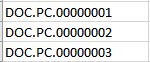
List the document numbers in separate rows, as shown in the following figure. You can create this format in Epiq Discover using the Document Action and selecting .
-
List the document numbers in a contiguous line with no spaces, separated by commas.

When adding a top-level folder, Project Manager or higher roles can restrict the folder access to one or more user groups. You can also include folders in the Epiq Assist filter. Refer to About organization for more information.
To populate folders using document numbers, complete the following procedure.
-
In the Main Menu, select and then .
- Choose whether to add document numbers to a new folder or an existing folder.
- To create a new folder, in the pane, click
 .
.- In the dialog box, in , type a name for the folder.
- To add the new folder within an existing folder, in , select the checkbox and then select the existing folder.
When adding a top-level folder, in , the default option is . To limit folder access to a specific user group, select that group.
To select more groups, click , and then select a group from the field that appears.
To include the folder in the Epiq Assist filter, in , select .
- Select .
- In , click the box, navigate to and select your CSV file, then click . Alternatively, you can drag the CSV file from Windows Explorer.
- Click .
- To add document numbers to an existing folder, hover over the folder name, click
 , and select .
- In the dialog box, select .
- In , click the box, navigate to and select your CSV file, then click . Alternatively, you can drag the CSV file from File Explorer.
- Click .
- To create a new folder, in the pane, click
- To view the folder contents, select the folder you created or updated.